How to Update a Hytale Server Safely (2026 Guide)
A source-first maintenance flow for server owners who need to update files, protect worlds, test compatibility, and bring players back without guessing at third-party patchers.
The short answer
To update a Hytale server safely, stop it cleanly, back up the world and configuration, record the current branch and build, then use the official Hytale Server Downloader and Server Manual to obtain the matching server files. Start with a staging or empty test world, inspect the logs, test one player connection, and only then reopen the live world.
Do not replace a working server with a random ZIP, cracked launcher, APK mirror, or generic Minecraft updater. Hytale Early Access can change server files, authentication, commands, APIs, and compatibility between channels, so the safest update is a documented update with a rollback copy.
What the official Hytale update path means
Hytale server maintenance is not the same as downloading a new client installer. The dedicated server has its own files, authentication requirements, Java/runtime expectations, configuration, world data, and compatibility boundary. The official Hytale Server Manual is therefore the first place to check before every meaningful update, even when an older tutorial appears to show a familiar command.
The manual describes the official Server Downloader and an auto-updating flow. That does not mean every server should blindly overwrite every directory. Your world, permissions, whitelist, configuration, logs, scripts, mods, and plugins are operational data. Keep those items in a backup and follow the current documentation for the exact files and patch line used by your server.
The right goal is reproducibility: another administrator should be able to see which branch you updated from, which files were downloaded, what was backed up, what changed, and which checks passed. This is slower than clicking an unverified mirror, but it makes a broken update diagnosable and reversible.
Back up and check the server first
A clean update starts before you download anything. Complete this short preflight while the server is still on the known-good build:
- Stop the server through its normal shutdown path and wait until the process, Java child process, and file writes have finished. Do not copy a world while it is actively saving.
- Back up the world or universe data, server configuration, permissions, whitelist, scripts, logs, and any mod/plugin folder that you may need to compare later. Keep one untouched rollback copy outside the live server directory.
- Record the current branch or channel, build label if the launcher or server output exposes one, Java version, startup arguments, port, world name, and the date of the last successful start.
- List every mod, plugin, data pack, script, and custom asset. Mark which ones are required for the world and which ones can be removed for a clean compatibility test.
- Read the current Hytale game-update notes and Server Manual. Separate stable/live instructions from optional pre-release instructions; do not apply a pre-release server package to a live branch just because its search result is newer.
- Tell players that maintenance is starting and reserve a test window. A short maintenance notice is better than letting users join while files are being replaced.
How to update a Hytale server
The following sequence keeps the risky parts isolated. The exact downloader flags and file names can change during Early Access, so use the current official documentation for command syntax instead of copying an old command from a forum post.
1. Shut down cleanly
Save the world, announce maintenance, and stop the server normally. Confirm that no server process is still holding world or log files open. If the process crashed, make a separate copy of the damaged or incomplete state before attempting a repair.
2. Make a dated rollback copy
Create a backup folder named with the server, branch, and date. Include the world, configuration, permissions, whitelist, scripts, logs, and a manifest of installed mods or plugins. A backup that cannot be identified later is not a useful rollback plan.
3. Confirm the branch and compatibility boundary
Check whether the server belongs to the normal live channel or an optional pre-release channel. Compare the intended client branch, server files, mods, and plugins. If the group uses a pre-release build, record that choice explicitly so a later administrator does not mix it with stable files.
4. Use the official Hytale Server Downloader
Follow the current Hytale Server Manual and official download flow to obtain the server package that matches your account and selected branch. Keep the downloaded files in a fresh staging directory first. Do not use a guessed CDN path, a torrent, a cracked launcher, or a mirror that asks for unrelated credentials.
5. Preserve server-owned data
Treat new server binaries and official assets separately from your world and operational files. Do not delete the backup, permissions, whitelist, configuration, or logs while copying the new package. If the official documentation names a migration step, perform it against the staging copy and keep the original untouched until the server starts.
6. Start in staging and read the logs
Launch the updated files with the intended Java/runtime and startup settings against a test world or a copied world. Watch for authentication failures, missing assets, version mismatches, schema or migration messages, port binding errors, and mod/plugin exceptions before allowing players to connect.
7. Reopen the live world only after a smoke test
Join with one client first, verify the world loads, test a simple interaction, confirm the expected port and permissions, and check that the server can save and shut down cleanly. Keep the rollback copy until the group has completed a real play session.
Never confuse a client update with a server update
Updating the official launcher on one computer does not automatically prove that your dedicated server files, mods, plugins, and world state are compatible. Check both sides of the connection.
Live and pre-release version context
As checked on August 22, 2026, Hytale's official update stream includes an Update 6 pre-release Part 13 entry dated August 20. That is useful evidence that the pre-release channel is moving, but it is not a promise that every live server should switch channels. A search result that says “latest update” is not enough to choose a server package.
For an update decision, the branch is more important than a copied version number. Check the launcher or server documentation that applies to your group, then make sure clients, server files, and extensions are discussing the same channel. If you cannot verify the branch, pause the rollout and keep the known-good backup.
The project does not publish an unofficial direct file mirror in this guide. The official download page and Server Manual are the fallback destinations; they may require the normal account or launcher flow. That is safer than inventing a permanent APK, EXE, ZIP, or timestamped CDN URL.
| Check | What to record | Why it matters |
|---|---|---|
| Channel | Live/stable or optional pre-release | Pre-release changes can require different server files and extension compatibility. |
| Build evidence | Launcher/server output and official update note date | It prevents a search snippet or old tutorial from becoming a false latest-version claim. |
| Runtime | Java/runtime version and startup arguments | A server can fail before world loading when the runtime or arguments are wrong. |
| Source | Official Server Downloader and Server Manual | There is no safe reason to replace official files with a guessed mirror. |
| Rollback | Dated world, config, permissions, and logs backup | You need a known-good state if migration or a mod update breaks the world. |
Freshness note: this page records the source check date and branch distinction instead of claiming one universal latest stable server file. Recheck official notes before the next maintenance window.
Validate the server after updating
A successful download is not a successful deployment. Use a small checklist and keep the first live login deliberate:
| Test | Pass condition | If it fails |
|---|---|---|
| Process start | The server stays running and logs reach a ready state. | Check runtime, startup arguments, authentication, and missing-file messages. |
| World load | A copied test world opens without migration or schema errors. | Restore the backup and test without mods or custom assets. |
| Save cycle | A block or simple world change saves and survives a clean restart. | Inspect permissions, file access, disk space, and world backup paths. |
| Player connection | One client on the matching channel can connect and move in the world. | Compare client/server branch, port, authentication, and firewall settings. |
| Extension check | Required mods/plugins load without repeated exceptions. | Disable optional extensions one at a time and check the creator's supported build. |
| Shutdown and rollback | The server shuts down cleanly and the backup can be located. | Do not open the server to the full group until the backup and restore path are clear. |
Troubleshoot common update failures
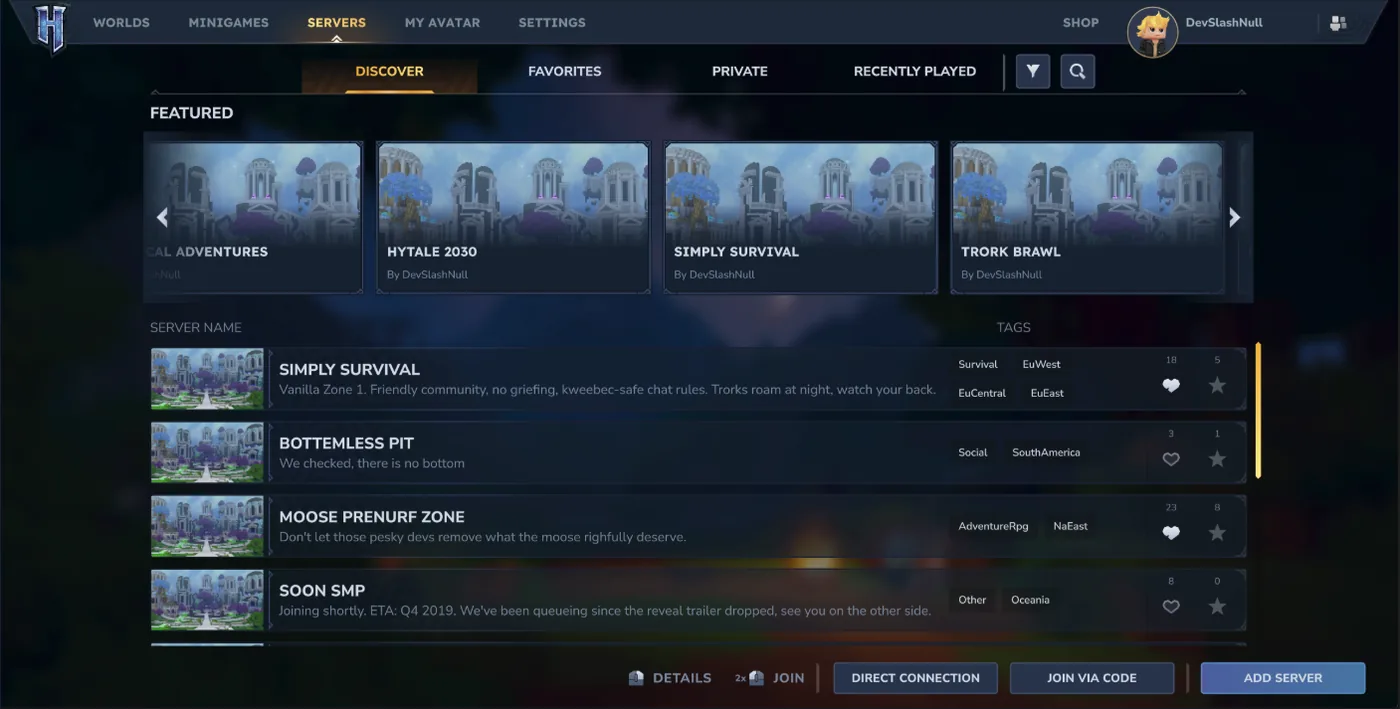
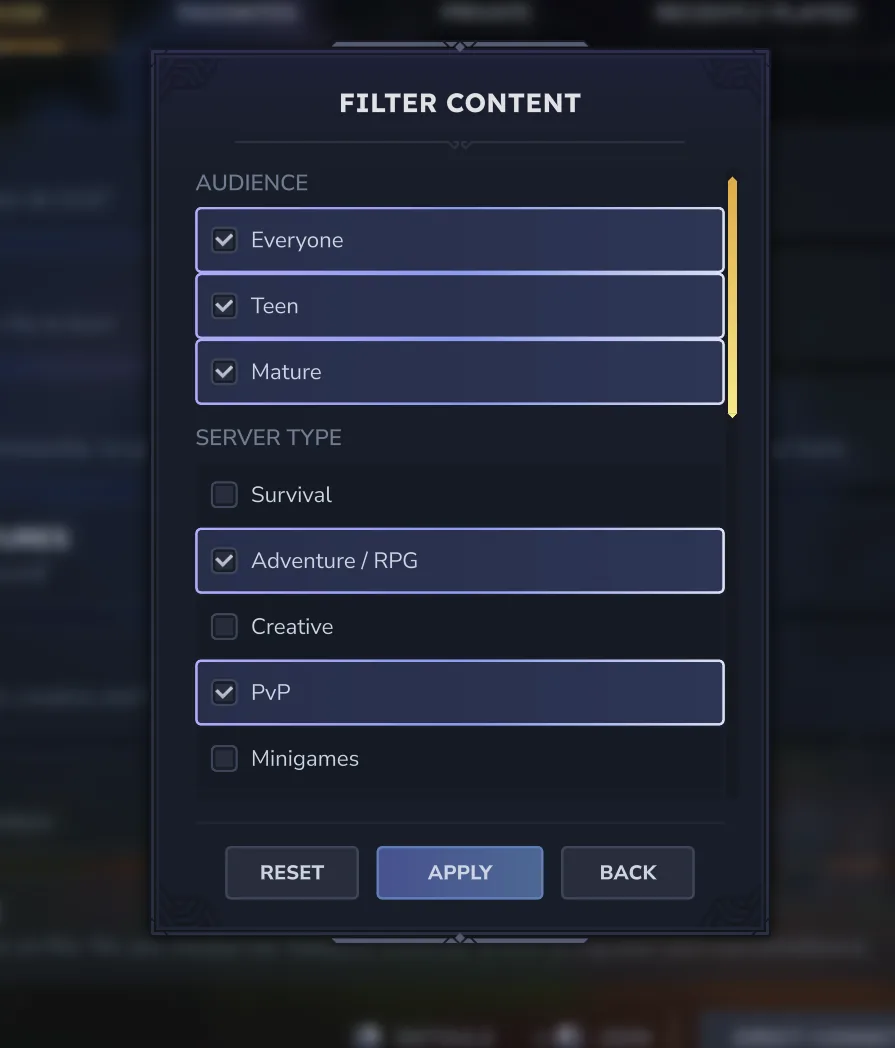
The official server-list screenshots below are useful for a connection smoke test, but public discovery filters are not a dedicated-server updater. Use the symptom, log line, and branch evidence together:
| Symptom | Likely boundary | Safe next action |
|---|---|---|
| Server exits immediately | Runtime, authentication, missing file, or invalid argument | Read the first fatal log line, compare the documented runtime, and retry from a fresh staging directory. |
| World will not load | Migration, incompatible world state, or custom asset/mod issue | Restore a copy, start an empty test world, then add one custom component at a time. |
| Players see a version mismatch | Client and server are on different channels or builds | Confirm the branch for every side; do not solve a mismatch with an unofficial patcher. |
| Mods or plugins fail | Extension API or dependency changed | Check the creator's changelog and supported build, then test without optional extensions. |
| Players cannot connect | Port, firewall, authentication, or server readiness | Verify the documented port and account flow after the server reaches ready state. |
| Public list looks different | Early Access discovery UI or filters changed | Use the current official server-list documentation and test direct/private access separately. |
A safe update is a repeatable maintenance routine
The most reliable answer to “how to update a Hytale server” is not a magic command. It is a controlled sequence: stop, back up, identify the branch, download through the official path, preserve server-owned data, test in staging, read the logs, and only then reopen the world. That sequence still works when a menu label or file name changes in Early Access because the decision points remain visible.
If the update breaks the world, stop experimenting on the only copy. Restore the known-good backup, document the failure, and compare the official notes with your runtime, mods, plugins, and branch. A short rollback is better than turning a recoverable update into permanent world-data loss.
Hytale server update FAQ
Official references checked
- Hytale Server Manual
- Hytale official download page
- Hytale official game updates
- Hytale official server lists article
- Hytale Update 5 patch notes
Sources checked on August 22, 2026. Official update channels can change during Early Access; revisit them before the next maintenance window.
The hero is an AI-generated conceptual illustration and is not an official screenshot. The two in-body screenshots are public Hytale media from official Hytale news pages; their captions identify the source context.