Hytale Controller Support: How to Set Up a Gamepad
A source-checked guide to native controller support, gamepad settings, menu navigation, troubleshooting, and what it does not mean for Android or consoles.
Quick answer
Yes. Hytale added native gamepad support in Update 5. The official settings screen includes vibration, vibration strength, automatic Xbox or PlayStation button icons, trigger dead zone, movement-stick dead zone, look-stick dead zone, sensitivity, and invert-look options. Connect the controller before launching, open Settings > Gamepad, confirm the icon style, and adjust dead zones only if you notice drift or missed input. This PC gamepad support does not confirm an Android APK, a mobile release, or console editions.
Does Hytale Have Controller Support?
Hytale now has native gamepad support. Hypixel Studios introduced it in the official Update 5 patch notes, replacing the older situation in which players had to rely on keyboard-and-mouse controls, remapping layers, or community workarounds. The presence of a dedicated Gamepad tab is the clearest evidence: this is a supported input path, not merely a controller pretending to be a keyboard.
Native support matters because the game can display controller-specific button prompts, handle analog movement, apply separate dead zones to sticks and triggers, and expose vibration controls. Those features are more useful than a simple key mapper, especially during combat, building, inventory use, and server browsing.
Support can still evolve. Update 5 shipped the main feature and subsequent hotfixes addressed gamepad-related behavior. Mods, pre-release builds, unusual Bluetooth drivers, virtual-controller software, and individual UI screens can introduce separate problems, so always identify the exact game channel before troubleshooting.
Which Controllers Work with Hytale?
The official menu explicitly offers Xbox and PlayStation button-icon sets. That confirms those layouts are expected, but the practical connection method depends on the operating system, cable, wireless adapter, Bluetooth stack, and controller firmware.
| Controller type | Best first connection | What to check |
|---|---|---|
| Xbox controller | USB cable or official wireless adapter | Use Auto or Xbox button icons; update firmware if inputs disconnect |
| PlayStation controller | USB cable first, then tested Bluetooth | Choose PlayStation icons if Auto shows Xbox prompts |
| Third-party XInput gamepad | USB | Confirm Windows detects every button and axis before opening Hytale |
| Nintendo-style or DirectInput pad | Platform-dependent | May require a supported compatibility layer; avoid stacking multiple remappers |
| Steam Input or virtual controller | Only when native detection fails | Prevent double input by enabling one translation layer, not several |
No official compatibility list guarantees every model. Start with a wired connection and the operating system's controller test panel. If the pad fails there, Hytale cannot fix the driver or pairing problem.
How to Set Up a Controller in Hytale
Use this order so you can separate game settings from operating-system or wireless issues:
- Update Hytale through the official launcher. Do not install a separate controller patch, unofficial executable, or APK.
- Connect the controller before starting the game. A wired USB connection is the cleanest first test.
- Verify the controller in Windows, macOS, or Linux input settings. Confirm both sticks, triggers, face buttons, shoulder buttons, and the directional pad respond.
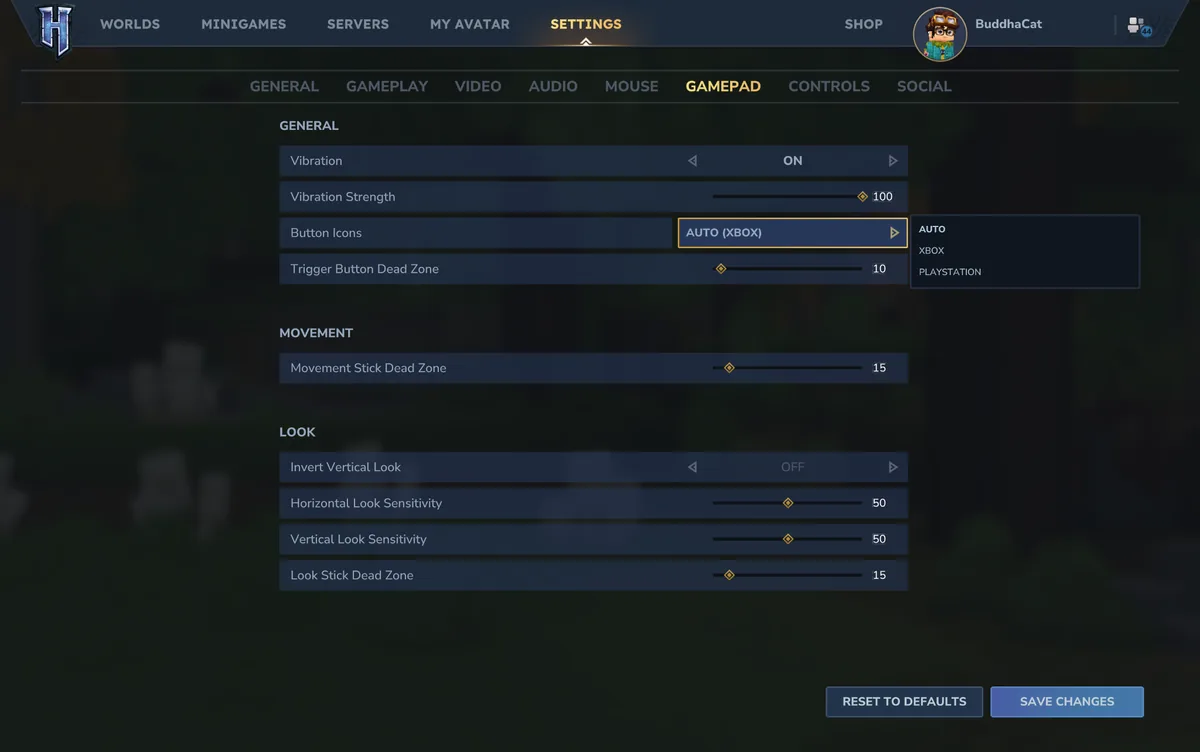
- Launch Hytale and open Settings, then Gamepad. Turn vibration on or off and choose Auto, Xbox, or PlayStation button icons.
- Enter a private or low-risk world before changing sensitivity. Test walking, sprinting, camera movement, inventory navigation, combat, and building.
- Change one setting at a time. Save, retest, and keep a note of the previous value so troubleshooting does not become guesswork.
Recommended Hytale Gamepad Settings
The official screenshot shows defaults such as movement and look dead zones of 15, a trigger dead zone of 10, and look sensitivity around 50. Treat them as starting points, not universal best settings.
| Setting | Good starting point | When to change it |
|---|---|---|
| Button icons | Auto | Force Xbox or PlayStation if prompts do not match your controller |
| Movement stick dead zone | Default 15 | Raise for movement drift; lower carefully for faster response |
| Look stick dead zone | Default 15 | Raise if the camera moves by itself; lower if aiming feels unresponsive |
| Trigger dead zone | Default 10 | Raise if triggers activate accidentally; lower if full presses are missed |
| Horizontal/vertical sensitivity | Around 50 | Lower for precise building and ranged combat; raise for faster turning |
| Vibration strength | Personal preference | Reduce for comfort, battery life, or clearer fine movement |
| Invert vertical look | Off | Enable only if inverted camera control is familiar |
Controller Use in Menus, Servers and Mixed Input
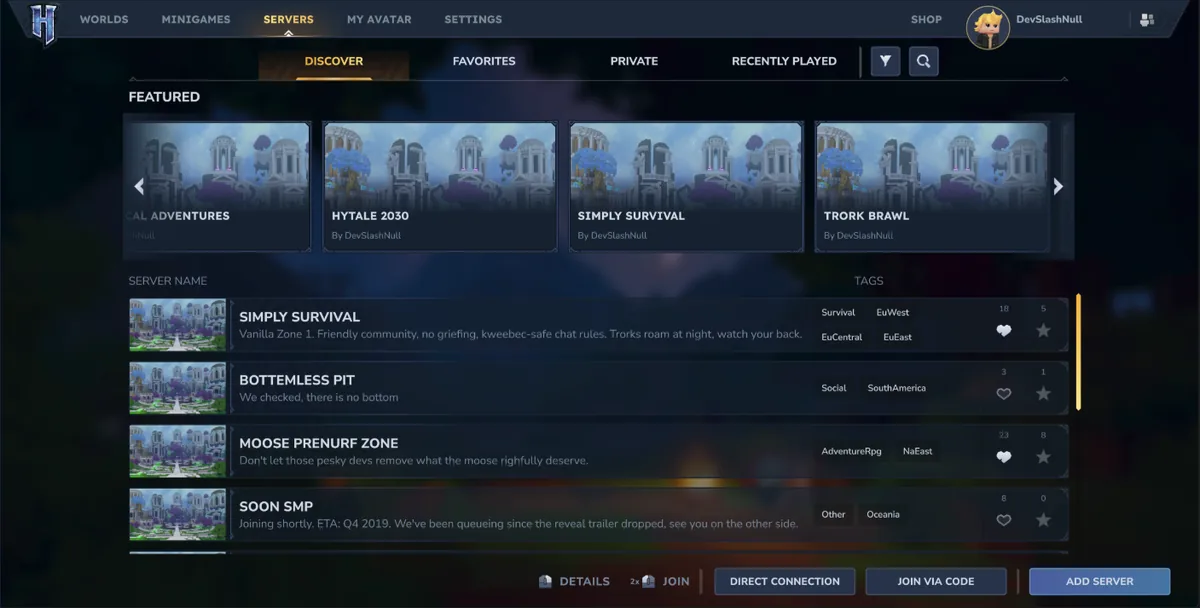
Controller support is not limited to walking around a world. Update 5 also revised interface areas such as server discovery, and the gamepad feature is intended to make ordinary UI navigation possible without constant mouse use. Still, dense creative tools, text entry, mod configuration, and unusual community interfaces may remain easier with a keyboard and mouse.
Mixed input is useful: keep the controller active for movement and combat, then use a mouse for precise inventory or creator-tool work. If every action fires twice, however, mixed input is probably not the cause. Double input usually means Hytale sees the physical controller while Steam Input, DS4Windows, reWASD, or another remapper simultaneously creates a virtual controller.
Server owners and mod users should reproduce an input bug in an unmodified local world. If the same controller works there but fails on one server or with one mod pack, report the game version, controller model, connection type, and exact screen or action to the server or mod author.
Hytale Controller Not Working: Fixes by Symptom
Work from the outside in: hardware and operating system first, then Hytale, then remappers, mods, and servers.
| Symptom | Likely cause | Safe fix |
|---|---|---|
| Controller is not detected | Pairing, cable, driver, or controller connected after launch | Reconnect by USB, verify OS input, restart Hytale |
| Xbox icons appear on a PlayStation pad | Automatic icon detection chose the common XInput layout | Open Gamepad settings and select PlayStation icons |
| Character or camera drifts | Stick wear or dead zone set too low | Increase the affected dead zone in small steps |
| Buttons trigger twice | Native input plus Steam Input or another virtual controller | Disable extra remappers and keep one input path |
| Bluetooth has delay or disconnects | Wireless interference, low battery, firmware, or adapter issue | Charge, update firmware, test USB, then retest Bluetooth |
| Controller works in menus but not one world | Mod, server, or pre-release compatibility issue | Test a clean local world and compare exact build/channel |
| Settings reset | Config write problem or forced cloud/profile state | Save changes, close normally, check file permissions, avoid conflicting profile tools |
Does Controller Support Mean Hytale Is on Android or Consoles?
No. PC gamepad support is an input feature, not a platform announcement. A desktop game can support Xbox and PlayStation controllers without having Xbox, PlayStation, Nintendo Switch, Android, or iOS editions.
As checked on July 29, 2026, Hytale's official download guidance covers the supported desktop launcher flow, and the official sources reviewed for this page do not provide an Android package name, APK file size, Google Play listing, mobile download URL, or verified console release download. Do not interpret controller screenshots as evidence that a Hytale APK exists.
If a site offers a controller-ready Hytale APK, mobile beta, cracked launcher, or separate gamepad patch, verify it against Hytale's official site first. This site does not host a game file mirror and does not claim an unofficial APK is safe or official.
Platform boundary
Native gamepad support is verified for Hytale's desktop client. Android APK and console availability remain separate questions and require separate official announcements.
Version Freshness Check
| Site type | Game/download-intent guide site; version freshness gate applied before publication |
|---|---|
| Checked date | July 29, 2026 |
| Stable/live line | Update 5; official game-updates listing still identifies hotfix 0.5.7 |
| Pre-release line | Update 6 remains an optional pre-release channel and is not the normal live branch |
| Controller status | Native gamepad support introduced in Update 5; later hotfix notes include controller-related fixes |
| Platforms | Official desktop launcher guidance; no verified official Android APK or mobile package |
| Download CTA policy | Links point to official Hytale information or existing safe-download guidance, not guessed file URLs |
Bottom Line
Hytale controller support is real, native, and configurable. Start wired, verify the device at operating-system level, use the Gamepad menu to match button icons, and tune dead zones only when a specific symptom justifies it. Keep one input translation layer to avoid double input.
For the cleanest experience, stay on the correct official launcher channel and test problems in an unmodified local world. Treat Android, console, and unofficial download claims separately: controller support alone proves none of them.
Hytale Controller Support FAQ
Official sources
- Hytale Update 5 patch notes (native gamepad support and official screenshots)
- Hytale official game updates (stable hotfix 0.5.7)
- Hytale Update 6 pre-release notes
- Hytale Support: how to download and play
All three page images are compressed local WebP copies of media published in Hytale's official Update 5 patch notes. They are identified as official media, not AI-generated screenshots.